


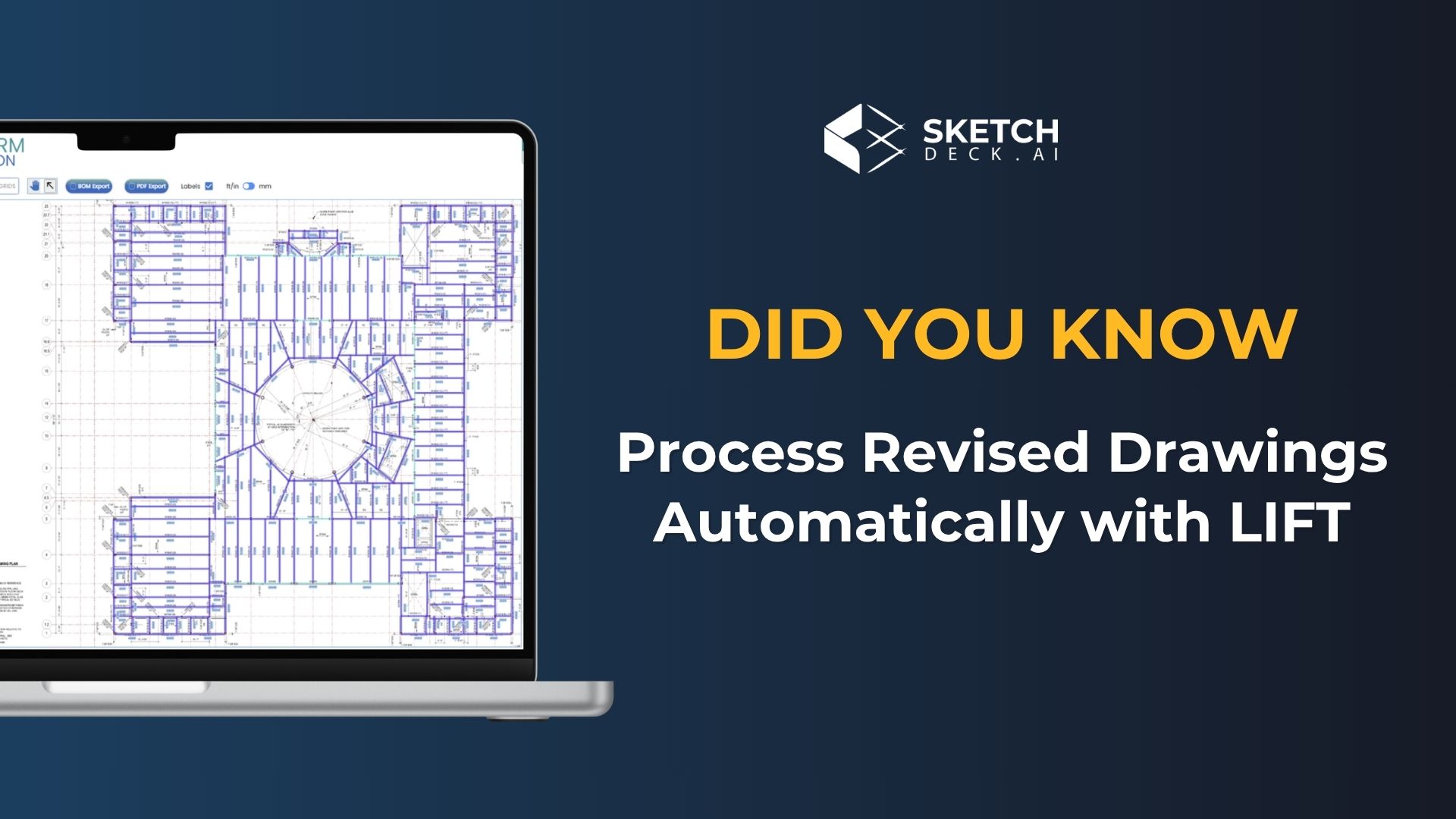
When a revised drawing set comes in on a job you already bid, the usual next step is slow: open the new set next to the old one and cross-reference them sheet by sheet, member by member, to find what changed. Miss a size change or a deleted beam and your re-bid is wrong.
SketchDeck (formerly LIFT) compares the two sets for you. Upload a revision and SketchDeck marks every member as changed, added, or removed, so you can re-bid or produce a change order without throwing out the takeoff you already finished.
This guide walks through how it works.

Processing a revision against your existing takeoff
Once you have completed a takeoff on the original drawing set, you process the revised set the same way you would any drawing set. SketchDeck analyzes the new drawings, then compares the results against your existing takeoff instead of starting from a blank slate.
The work you already did stays intact. You are reacting to what changed, not redoing the whole job.
Reading the status field: changed, added, and removed
Open the Quantities Panel and you will see a status on every member, based on SketchDeck’s comparison of the two sets:
- Changed. The member existed before, but something about it moved.
- Added. A new member that appears in the revised set but not the original.
- Removed. A member that was deducted between revisions.
Color-coding the members gives you a fast visual read on where the changes are concentrated across the drawing.
Seeing exactly what changed on a member
For any member marked Changed, hover over the changed icon and SketchDeck gives you a summary of what moved. That might be the member size, the stud count, the camber, a label, or a combination.
So instead of “something on this beam is different,” you get “the size changed, the studs changed, and the camber was removed.” You know what to verify before it affects your number.
Validating results with the overlay
Use SketchDeck’s overlay to check the comparison visually. You can confirm that a member flagged as added really is new, or that a change SketchDeck caught matches what the architect actually revised. It is a quick way to trust the results before you build them into a re-bid.
Tracking your own edits from that point forward
Revision management does not stop once SketchDeck finishes its comparison. Any changes you make manually from there are tracked too, and summarized in the Quantities Panel and in the exports available through SketchDeck.
That gives you a clean record of everything that moved between the original bid and the revision, which is exactly what you need when you are walking a general contractor through a change order.
Watch the full walkthrough
This 2-minute video covers every step above, with a live demo inside SketchDeck from our Head of Product, Grayson Ingram.
Questions about processing a revision? Reach out to your Customer Success rep. We are happy to walk through it on one of your own projects.
New to SketchDeck? Book a demo and we will run a takeoff on one of your past projects.